 Mosaizer Pro 12 -
Help |
Mosaizer Pro 12 -
Help
3D effects
Mosaizer Pro offers a small set of 3D effects: a
shadow under each tile, and a textured layer over the photo mosaic
result. Shadow
effect To set the shadow effect, select the control window
'Masks'. There are two slider controls and a
checkbox to set the shadow effect. The shadow size determines how wide/broad the
shadow must be. A size of two generates a simple black shade around the tile,
and for larger values this shade effect will grow, but also gets paler (like in
real life).
The second slider
determined the position (depth) of the shadow. When its value is positive the shadow moves to
the right-bottom corner, when the value is negative the shadow moves towards
the top-left corner.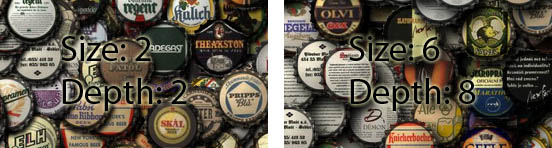
Textures
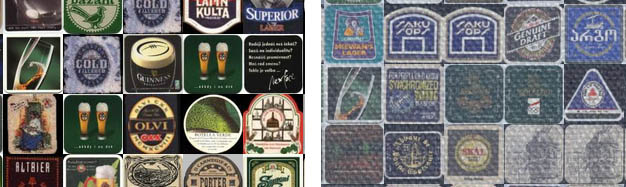
To set the texture effect, select the control window 'Masks'. There are two slider controls, a checkbox and a texture selection drop-down box. The first slider control determines the transparency of the texture, where 100% means: no texture visible. The second slider sets the size of the texture, compared with the original size on disk. The drop-down box lets you choose what texture is required. All these texture files are provided at installation and are stored in the subfolder '/Textures' of the application. In the example below you see the effect of a jeans texture (transparency set at 50%).
There are some aspects worth mentioning: